How to Activate Ubuntu Pro from Security Center on Ubuntu 26.04 LTS
Introduction
Ubuntu 26.04 LTS streamlines system management by integrating Ubuntu Pro settings directly into the Security Center app, replacing the old Software & Updates utility. This new layout offers a cleaner, less cramped interface with clearer explanations for each toggle and option. Whether you're a home user (free for up to five devices) or a business needing a paid subscription, enrolling Ubuntu Pro is now more intuitive. This guide walks you through the entire activation process step by step.

What You Need
- Ubuntu 26.04 LTS (or later) installed on your device.
- A stable internet connection.
- Optional but recommended: An Ubuntu One account for personal subscriptions. Business users need a valid Ubuntu Pro token from their account manager.
Step-by-Step Guide to Enable Ubuntu Pro
Step 1: Launch Security Center
Click the Activities button at the top-left of your screen, type “Security Center” into the search field, and select the app when it appears. Alternatively, you can find it pinned to your dock if you've used it before.
Note: In Ubuntu 26.04 LTS, Security Center is the default system security hub—you won’t find the old Software & Updates utility in the default install.
Step 2: Navigate to Ubuntu Pro Settings
Once Security Center opens, you’ll see a sidebar on the left. Click on the Ubuntu Pro section (it’s usually labeled clearly). The main panel will display an overview of your current subscription status and a few configuration options.
Step 3: Choose Your Subscription Type
At the top of the Ubuntu Pro panel, you’ll see two options:
- Personal Use (Free): For individual users on up to five devices. No payment required.
- Business/Enterprise: For organizations or anyone managing multiple machines. Requires a paid subscription token.
Select the appropriate option for your situation. If you’re unsure, start with the free personal tier—you can upgrade later.
Step 4: Sign In or Create an Ubuntu One Account
Click the Activate button (or Sign In, depending on your selection). A web browser will open, prompting you to log in with your Ubuntu One credentials. If you don’t have an account, follow the on-screen links to create one—it’s free and only takes a minute.
Tip: Use the same email address for all your Ubuntu devices to manage subscriptions from one place.
Step 5: Attach Your Subscription
After logging in, the system will automatically attempt to attach your Ubuntu Pro subscription to the current machine. For personal users, you may see a confirmation screen letting you know the subscription is active. Business users will be asked to enter a token (provided by your account manager) or select a contract.
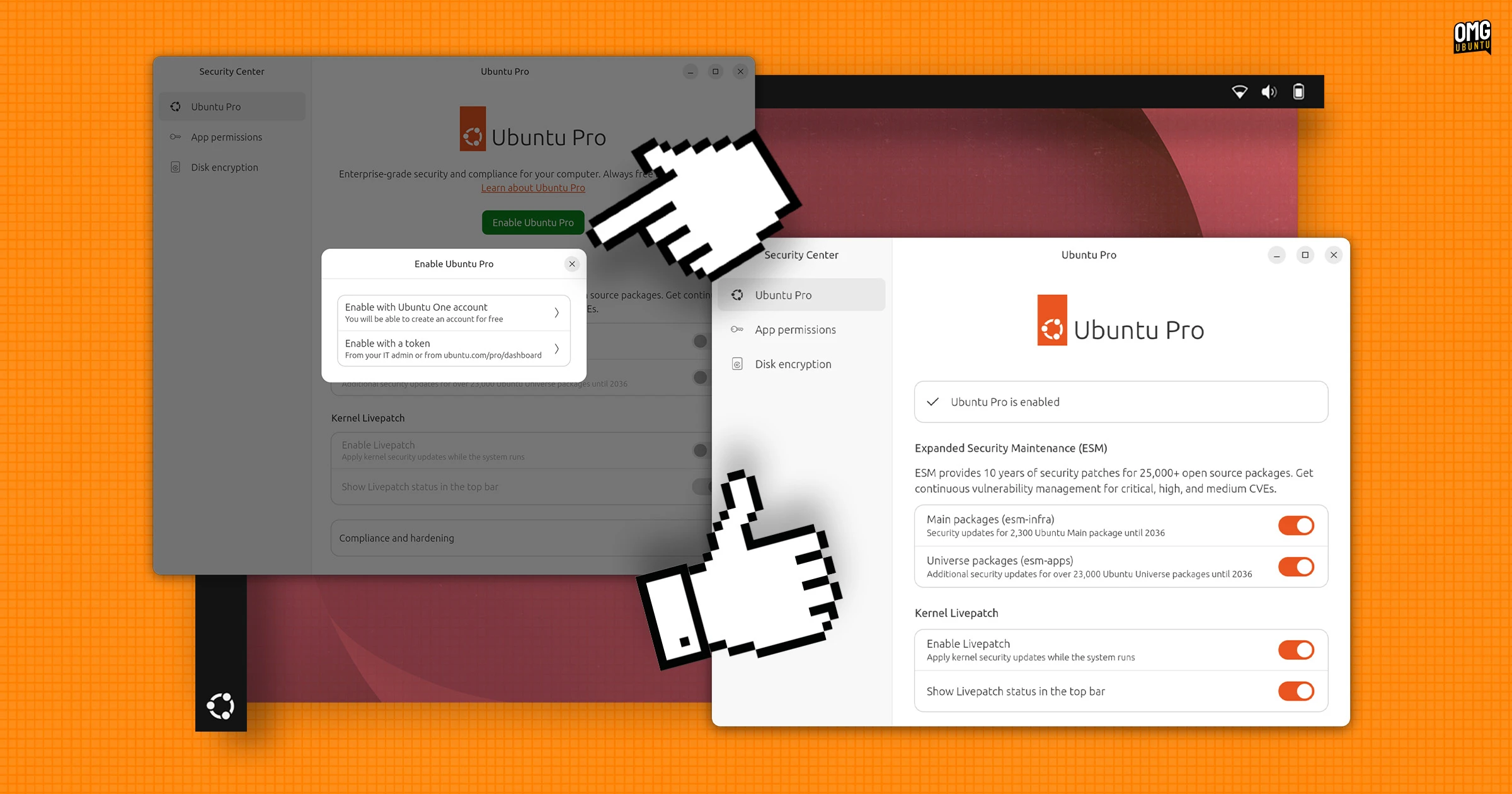
In most cases, no further action is needed—the activation happens in the background. If prompted, confirm the device name or grant permission.
Step 6: Verify Activation
Return to Security Center’s Ubuntu Pro panel. You should now see a green checkmark, the subscription end date (if applicable), and details about which services are active (e.g., Extended Security Maintenance, Livepatch). To confirm everything is working, you can also open a terminal and run:
pro statusThis command lists your subscription status, attached services, and any available updates that require Ubuntu Pro.
Tips for a Smooth Experience
- Free personal limit: Remember the free tier covers up to five machines. Use the same Ubuntu One account to link all your personal devices.
- Manage subscriptions online: Visit ubuntu.com/pro to view or detach devices, upgrade to a paid plan, or download tokens.
- Business users: Keep your token handy. You can retrieve it from your Ubuntu Pro dashboard at any time. If you manage a fleet, consider using Landscape for bulk activation.
- Check for updates: After activation, run
sudo apt update && sudo apt upgradeto start receiving Pro-only security patches. - No extra software needed: Ubuntu Pro is built into the system—no additional packages to install. The Security Center app handles everything.
Enabling Ubuntu Pro in Security Center is truly straightforward. The interface gives you clear options, and the entire process can be completed in under five minutes. Once activated, your Ubuntu system gains access to critical security updates and compliance tools, keeping your machine safe for years to come.
Related Articles
- 10 Things You Need to Know About the New AI Safety Checks
- Battlefield 6 Season 3 Drops May 12: Vehicle Overhaul, Netcode Fixes, and New Ranked Mode Revealed
- Swift 6.3 and Community Updates: March 2026 Highlights
- How to Evaluate Rivian’s Q1 2026 Financial Report and R2 Production Milestones
- Mastering AI in Software Development: Insights from Chris Parsons' Updated Guide
- How to Build AI Agents and Workflows Using Notion's Developer Platform
- How to Decide If the reMarkable Paper Pure Is the Right E Ink Writing Tablet for You
- Your Ultimate Guide to Scoring Deals on Amazon Prime Day 2026 in June