10 Hidden Gems of Windows 11 Pro's Disposable PC Feature You Need to Know
Most of us treat our main PC like a treasure chest, locking it down with antivirus, backups, and careful clicks. But even with these precautions, one wrong move can lead to a malware infection or system instability. That's where Windows 11 Pro's hidden gem comes in: a built-in disposable PC environment, officially called Windows Sandbox. This temporary, isolated virtual machine lets you run suspicious files, test new software, or browse risky websites without touching your real system. Once you close it, everything is erased. If you haven't explored this feature yet, here are 10 things you need to know to make the most of it.
- What Is the Disposable PC?
- Activation Requirements
- Perfect for Malware Analysis
- Testing Software Safely
- Browsing Without a Trace
- Performance Considerations
- Limitations to Know
- How It Differs From Virtual Machines
- Privacy and Isolation Benefits
- Tips for Everyday Use
1. What Is the Disposable PC?
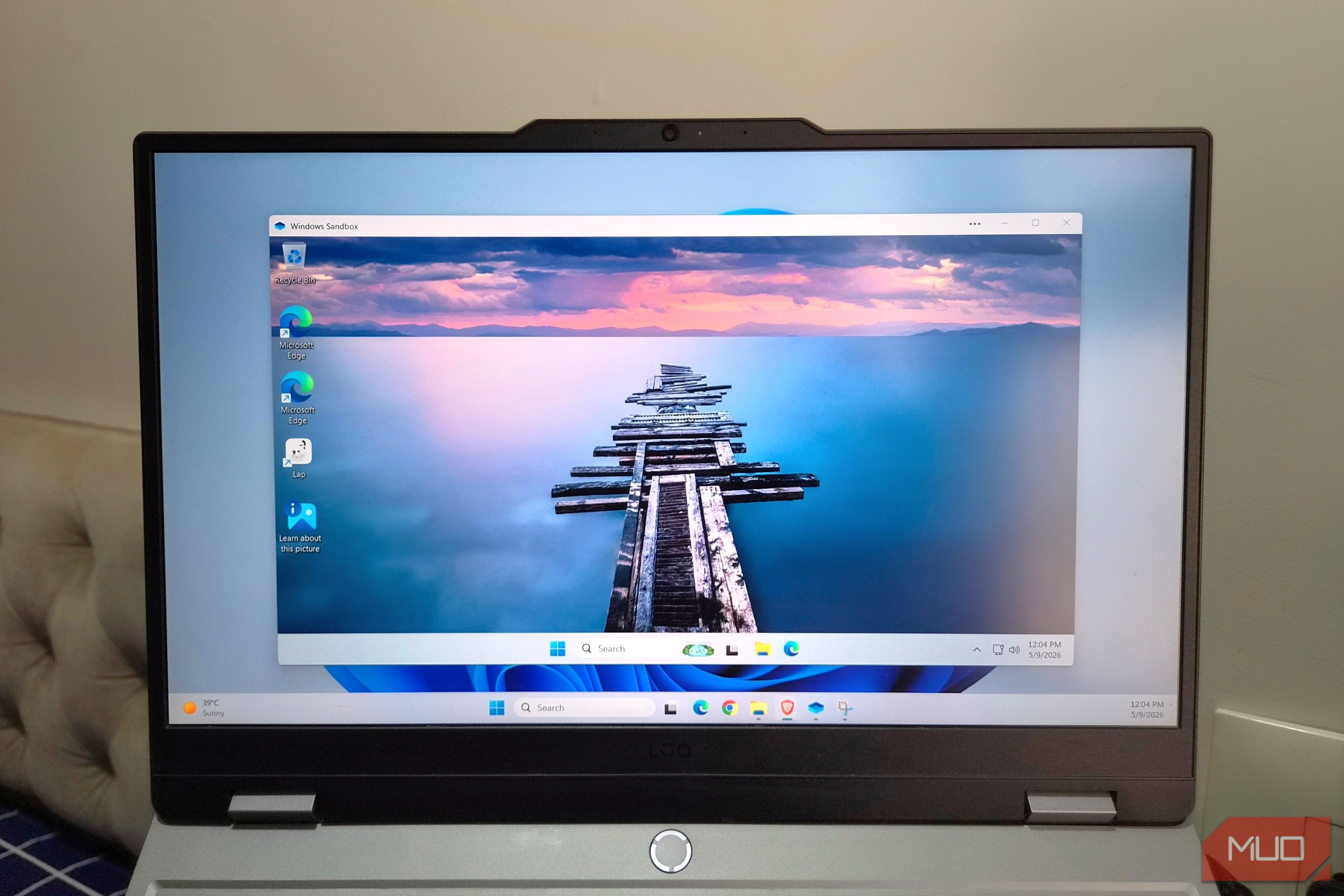
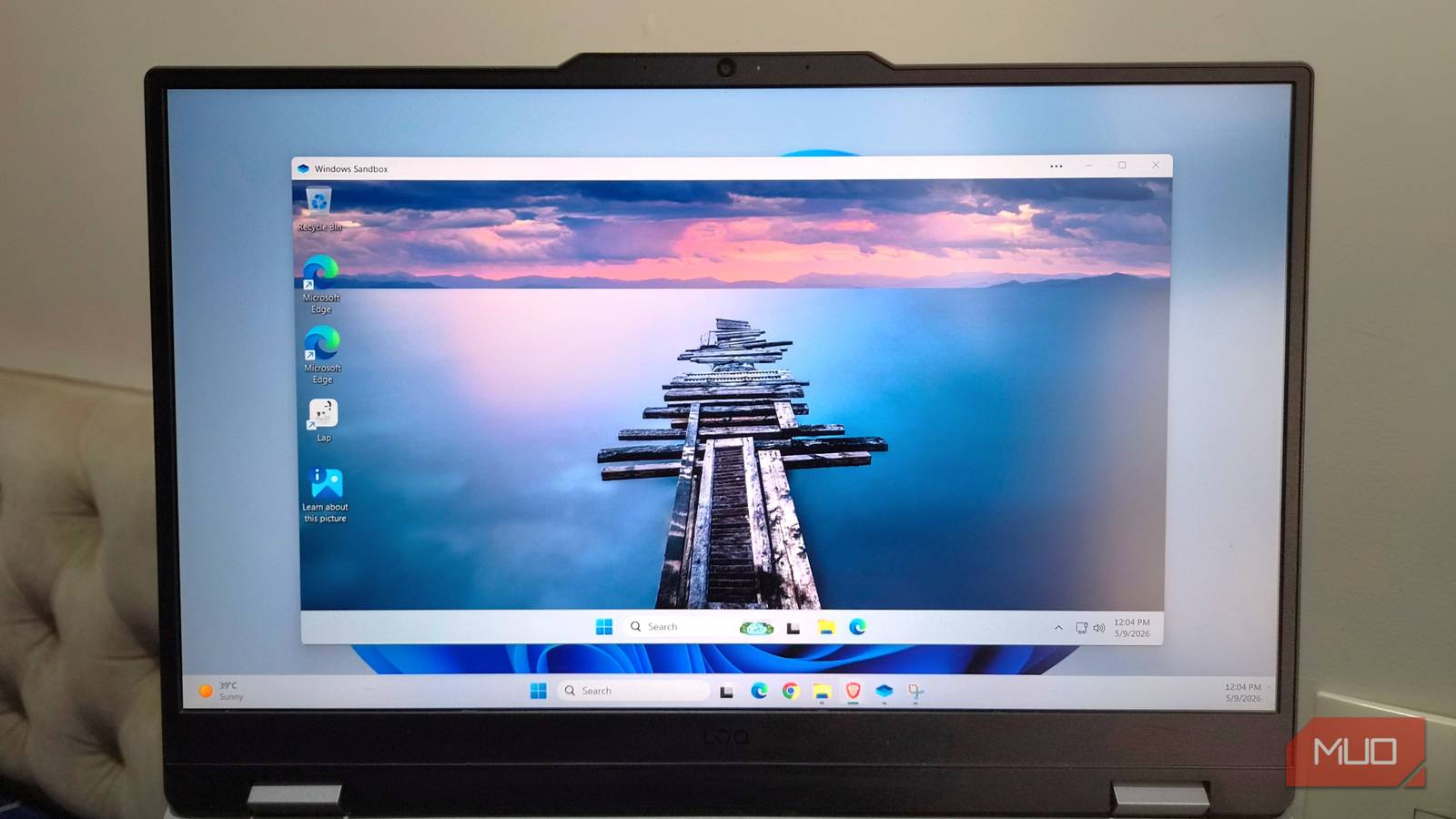
Windows Sandbox is a lightweight virtual machine integrated into Windows 11 Pro (and Enterprise). When you open it, you get a fresh, clean copy of Windows running inside an isolated container. It shares your host system's kernel but uses a separate memory and disk space. The magic? Once you close the Sandbox, every change—files, apps, malware—is permanently discarded. Think of it as a 'disposable PC' that you can use for high-risk tasks and then throw away with a single click. No remnants remain on your main system, making it an ideal tool for testing untrusted content.
2. Activation Requirements
Before you can use this feature, ensure you meet a few prerequisites. Your PC must be running Windows 11 Pro or Enterprise (not Home), have virtualization enabled in BIOS (Intel VT-x or AMD-V), and possess at least 4 GB of RAM (8 GB recommended). Also, you need about 1 GB of free disk space for the base Sandbox image. To enable it, go to Turn Windows features on or off and check 'Windows Sandbox'. After a restart, you'll find the Sandbox app in your Start Menu. No additional downloads or licenses required—it's already built into the OS.
3. Perfect for Malware Analysis
Security researchers and curious users love Sandbox for analyzing suspicious files. Instead of risking your main PC, you can double-click a potentially malicious .exe inside the Sandbox. Watch what it does—registry changes, network connections, file drops—without any permanent damage. Because the Sandbox resets every time, you can repeat tests endlessly. Just remember: some advanced malware can detect virtual environments, so Sandbox isn't foolproof, but it handles the vast majority of threats effectively.
4. Testing Software Safely
Ever wanted to try a beta program or a risky driver? Sandbox gives you a stress-free playground. Install the software, check for conflicts, performance, or unwanted behaviors. If it crashes or installs bloatware, just close the Sandbox and start anew. This also works for testing configuration changes—like modifying the registry or applying group policies—without committing to them. The isolation ensures your primary Windows installation stays pristine and unaffected.
5. Browsing Without a Trace
For situations where you need to visit questionable websites (e.g., for research), Sandbox provides a completely temporary browser session. No cookies, no history, no saved passwords on your host. Even if you accidentally download something malicious, it vanishes when you close the environment. This is particularly useful for opening email attachments from unknown senders or clicking on links that look suspicious. Think of it as a virtual incognito mode on steroids.
6. Performance Considerations
While Sandbox is efficient, it does consume system resources. Expect to use an extra 1–2 GB of RAM and some CPU cycles, especially when running heavy applications inside it. On machines with 8 GB RAM or less, you may notice slowdowns. For best results, allocate at least 4 GB of free RAM before launching Sandbox. Also, because it shares your host's kernel, there's no hardware virtualization penalty for most tasks—making it faster than traditional virtual machines for common file operations.
7. Limitations to Know
Windows Sandbox isn't perfect. It lacks persistent storage—every file you want to keep must be copied out before closing. Networking is enabled by default, but you can disable it via a configuration file (.wsb) for extra security. Also, it requires a supported Windows edition, so Home users can't use it without upgrading. Finally, because it's a lightweight container, it doesn't support GPU passthrough for gaming or 3D-heavy apps. Understanding these limits helps you decide when Sandbox is the right tool versus a full virtual machine.
8. How It Differs From Virtual Machines
Traditional virtual machines (like Hyper-V, VMware) run a complete separate OS, consuming gigabytes of disk space and requiring more setup. Sandbox is much lighter: it boots in seconds, uses the host's kernel, and has no installation overhead. However, it's less configurable—you cannot adjust RAM, CPU cores, or choose a different Windows version. For quick-and-dirty testing, Sandbox wins on convenience. For complex lab setups, a full VM is better. Knowing the difference helps you pick the right isolation method.
9. Privacy and Isolation Benefits
Because Sandbox runs in a separate memory space and resets completely, it offers strong privacy guarantees. Apps inside cannot access your host's files, clipboard (unless you allow sharing), or other processes. This prevents keyloggers or screen grabbers from escaping. It's also great for running old software that ties to system settings—if it misbehaves, your main PC stays clean. For anyone concerned about digital hygiene, Sandbox adds a valuable layer of protection without extra cost.
10. Tips for Everyday Use
Make Sandbox part of your routine. Pin it to your taskbar for quick access. Use the .wsb config file to customize network, shared folders, or startup commands. For frequent testing, keep a folder of classic tools (Process Monitor, Wireshark) ready to copy in. Also, remember that you can run multiple Sandbox instances if you have enough RAM. Finally, don't forget to shut it down properly—closing the window triggers the discard, so no extra cleanup is needed. Embrace the freedom of a disposable PC!
Windows 11 Pro's built-in Sandbox is a powerful but often overlooked feature that gives you the confidence to explore risky files and software without fear. By understanding these 10 aspects, you can use this disposable PC to protect your main system, save time on cleanup, and experiment freely. Give it a try—you'll wonder how you managed without it.
Related Articles
- 3 Pixel Camera Settings You Must Change for Perfect Photos
- SteelSeries Arctis Nova Omni Dethrones Nova Pro Wireless as Brand's Top Headset
- California's Social Media Ban Sparks Free Speech Concerns: EFF Warns of Dangerous Precedent
- 7 Critical Data Transformation Failures That Derail AI and Analytics (and How to Prevent Them)
- 7 Critical Insights into the BlackFile Vishing Extortion Campaign
- 7 Pivotal Marketing Lessons from a Three-Decade Asian American Ad Agency Success
- Unlocking Community Knowledge: How Facebook Groups Search Got Smarter
- AI Debate Turns Violent: Judge Scolds Musk and Altman as Attack on Altman's Home Highlights Growing Divide